Transform Your Travel Photos with Adobe Lightroom Mobile: A Beginner’s Guide
Photos are a must when traveling because they capture and preserve memories and experiences that can be revisited and shared with others. They can also inspire and motivate others to explore the world and create their own memories. In today’s digital age, social media platforms like Instagram provide a way to showcase travel photos and connect with like-minded individuals from all over the world. Therefore, taking photos while traveling is a great way to share our adventures and create lasting memories.
However, we are not happy to share travel photos that fail to do justice to the beauty and essence of the destination. Unlike other types of photography, such as studio photography, travel photography often involves capturing moments on the go, with little control over the environment or lighting. Moreover, travel photos may involve capturing a wide variety of subjects, from landscapes and architecture to food and people.
Therefore, how can we share our travel photos on social media platforms when we are not professional photographers and lack specialized equipment to capture stunning images? Simply scroll down below, and we will demonstrate how you can achieve it using only your mobile phone.
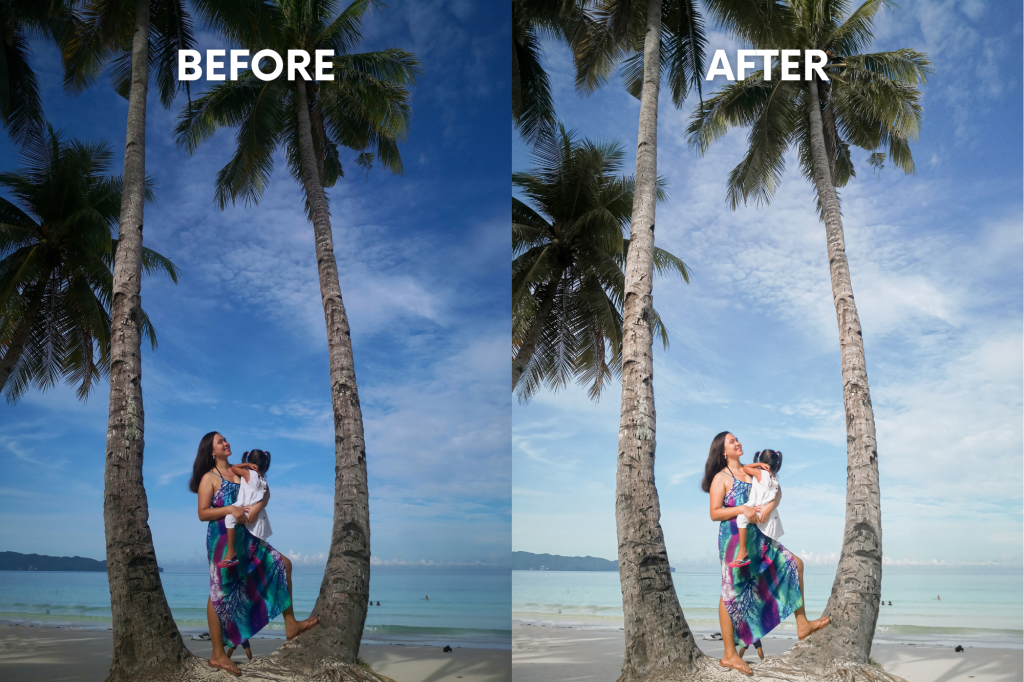
Adobe Lightroom Mobile is the solution.
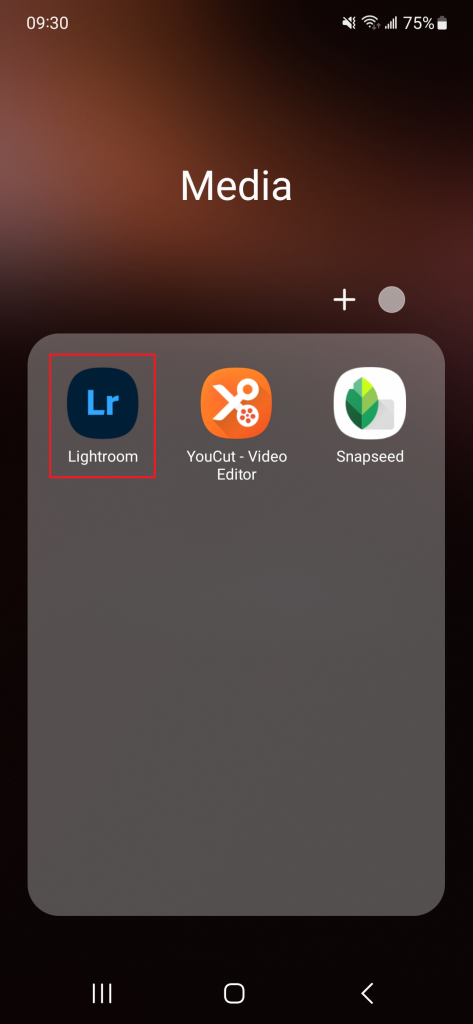
Adobe Lightroom Mobile is a powerful photo editing tool that allows you to edit your photos on the go, directly from your mobile device. Here’s a step-by-step guide on how to download Adobe Lightroom Mobile:
- Adobe Lightroom Mobile is available for download on both the Apple App Store and the Google Play Store. Open the app store on your device and search for “Adobe Lightroom Mobile” or scan the QR code below.

- Once you’ve found the app, click on the “Install” or “Get” button to download and install the app onto your device.
- After the app has finished downloading, open the app and sign in to your Adobe account. If you don’t have an Adobe account, you can create your free account on Adobe’s website.
- Once you’re signed in to your Adobe account, you can start using Adobe Lightroom Mobile to edit your photos.
How to edit your photos using Adobe Lightroom on your mobile?
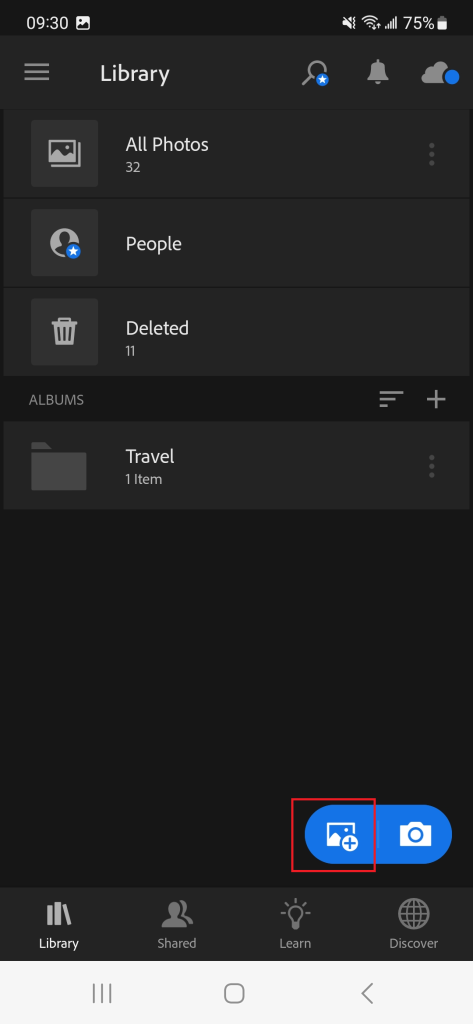
Import your photos.
To get started, open Adobe Lightroom on your mobile device and import the photos that you want to edit from your camera roll.
Apply Preset.
Presets are pre-made sets of adjustments that you can apply to your photos with a single click. Presets just like filters allow you to quickly apply a consistent look and feel to your photos without having to manually adjust each setting. Adobe Lightroom Mobile comes with a range of built-in presets.
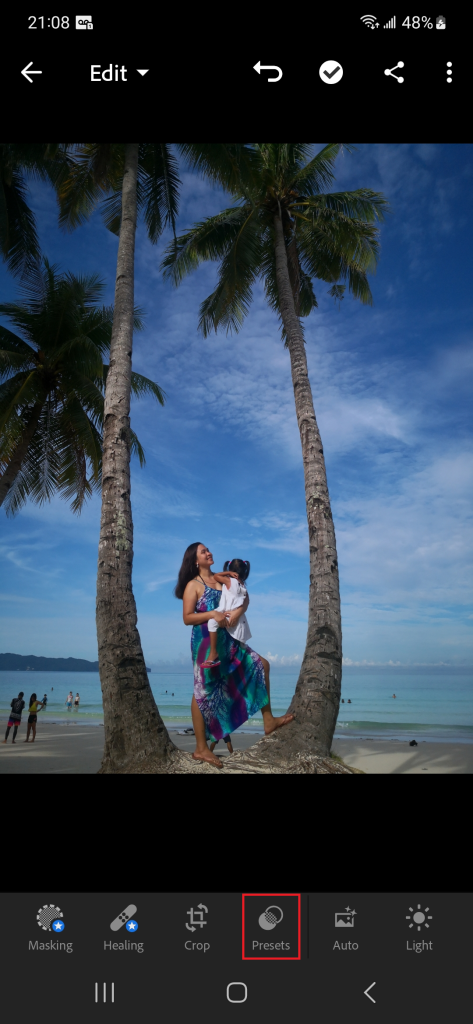
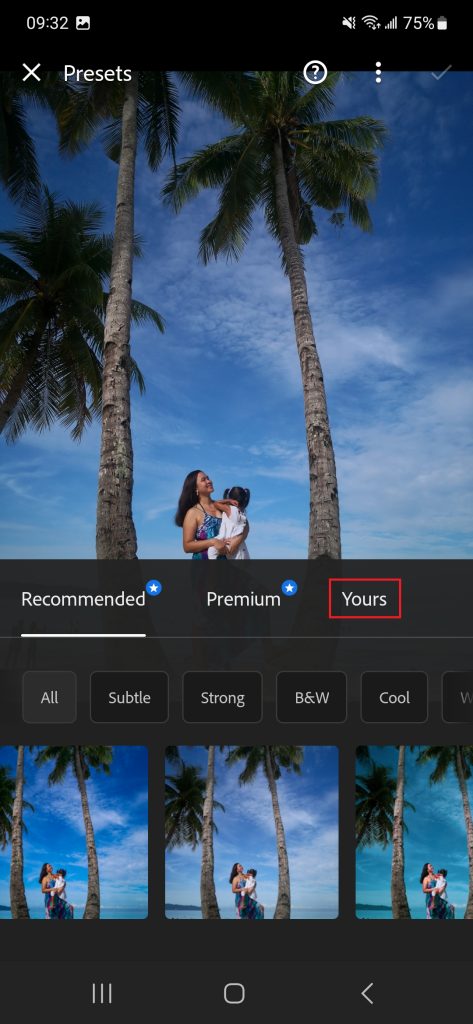
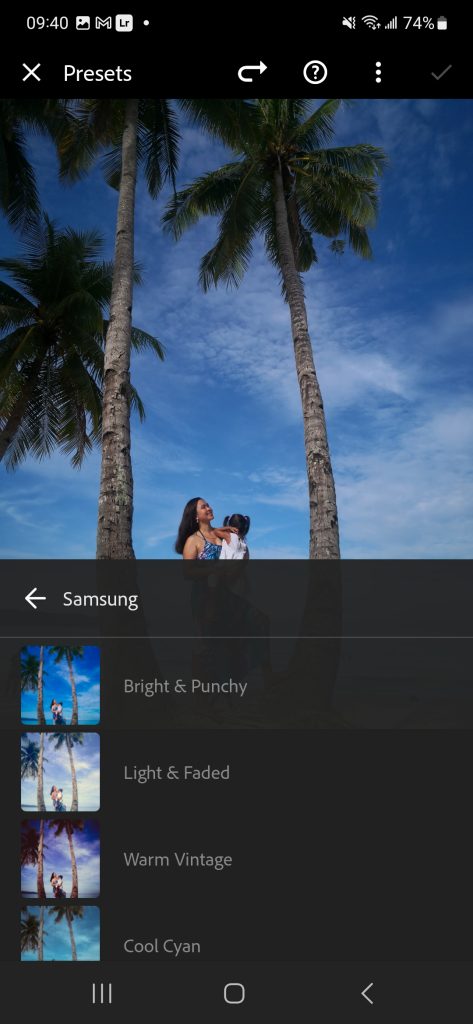
Alternatively, you can draw inspiration from others and use presets they have created, such as this free Bright & Airy Lightroom Preset. Some creators also sell premium presets on platforms like Etsy. You can download the raw photo and import it to Adobe Lightroom then create a preset to copy and save its settings.
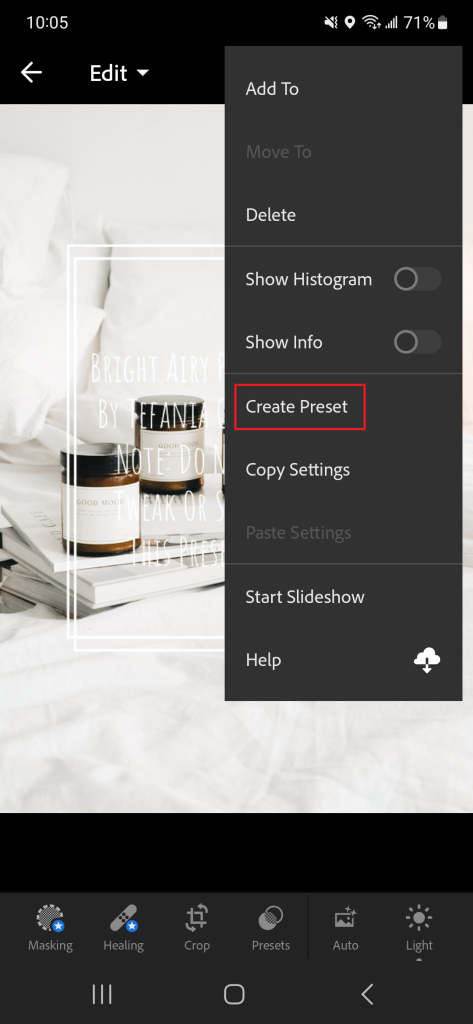
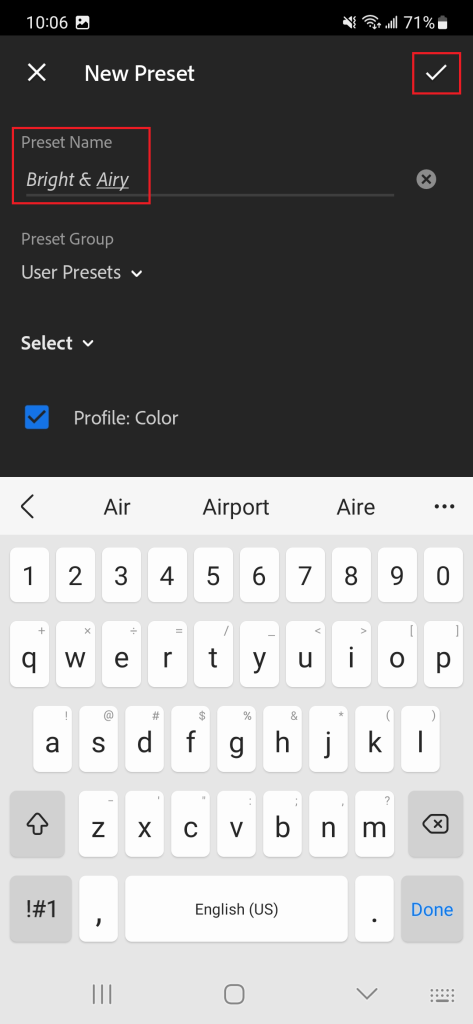
After you saved the preset, you can import the photo you want to edit and then apply the saved preset.
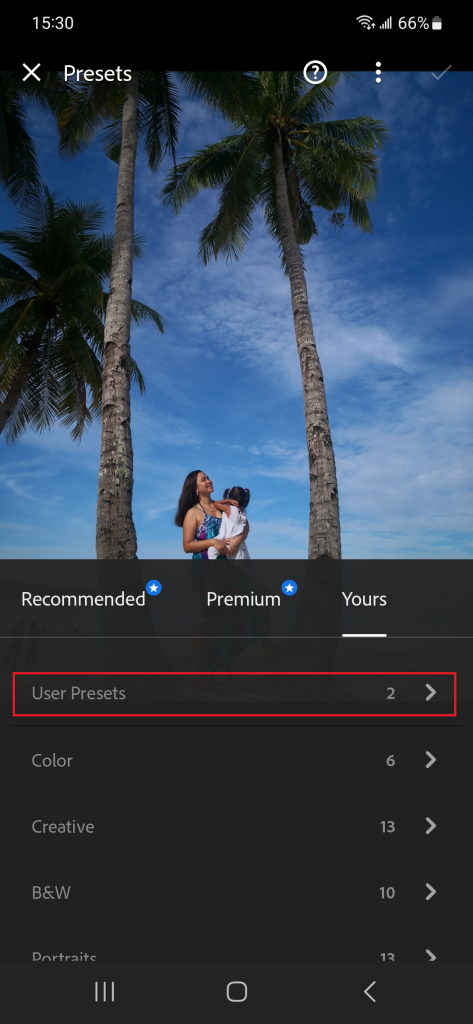
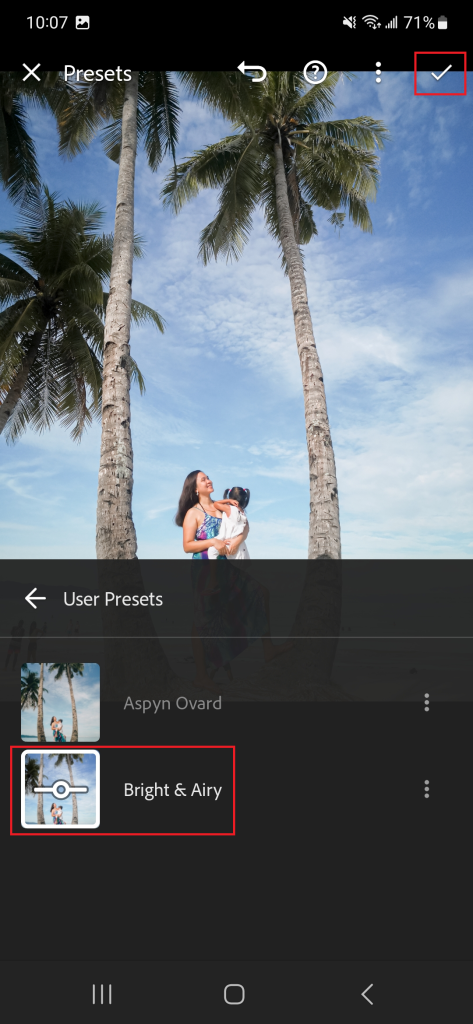
Using presets can be beneficial if you are serious about maintaining a cohesive look on your Instagram feed. It can help showcase your unique style and convey the desired mood of your content.
Adjust some settings.
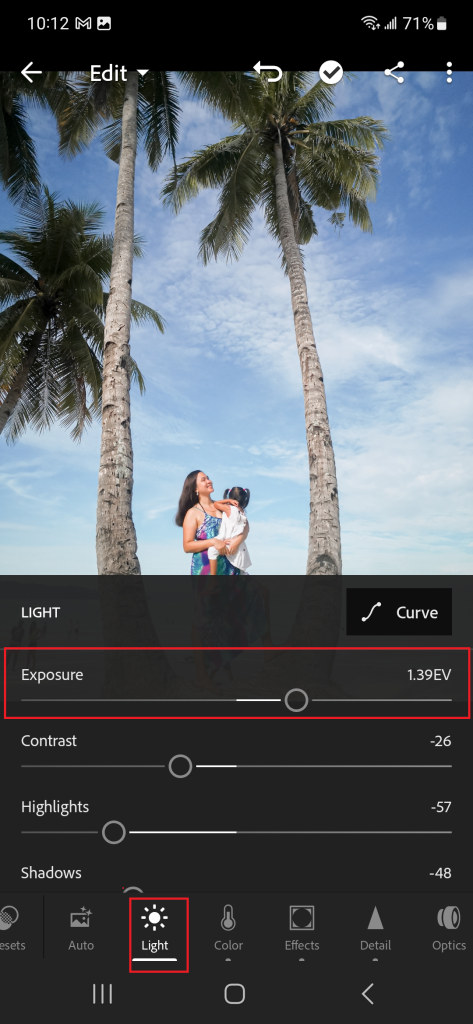
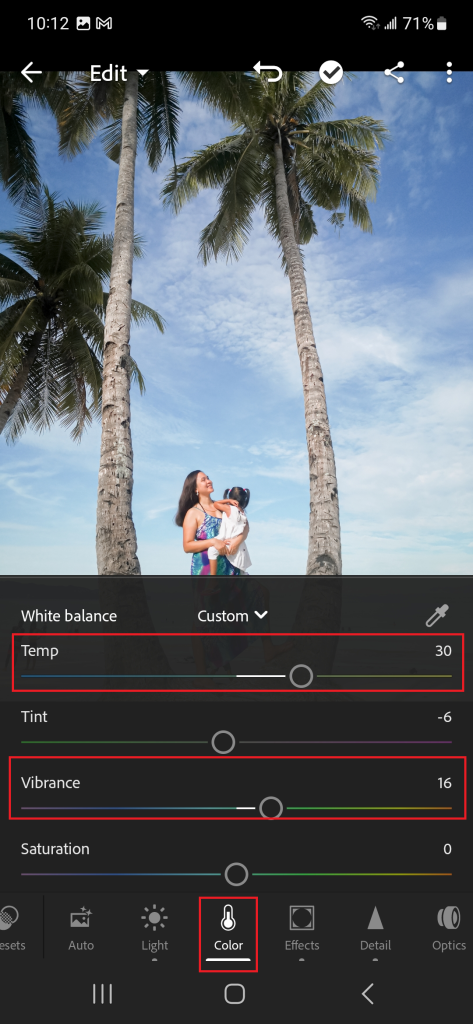
When it comes to photo editing, it’s important to remember that there is no one-size-fits-all solution. Even with presets or filters, every photo has unique characteristics that require adjustments to achieve the desired result. While presets can be a great starting point, it’s important to take the time to adjust the settings to fit the specific needs of each photo. Sometimes, you may need to adjust the exposure or tweak the saturation and vibrance.
Crop and straighten.
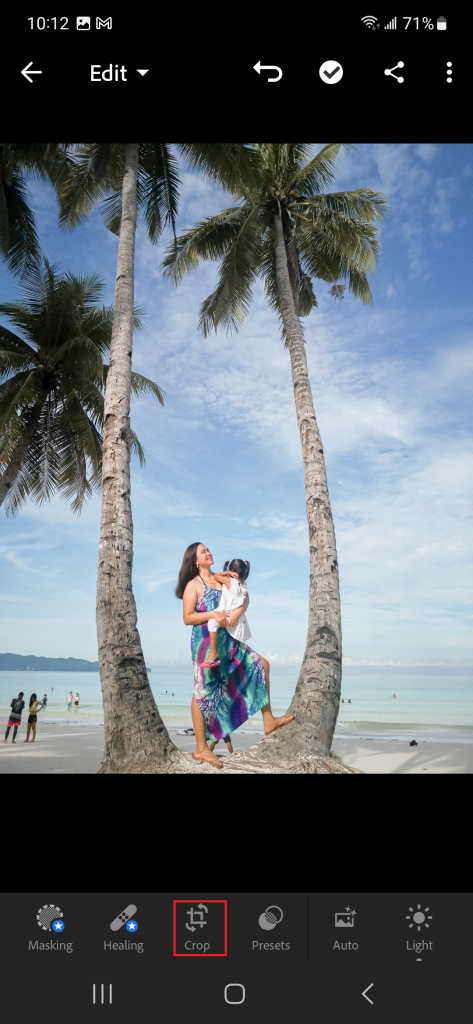
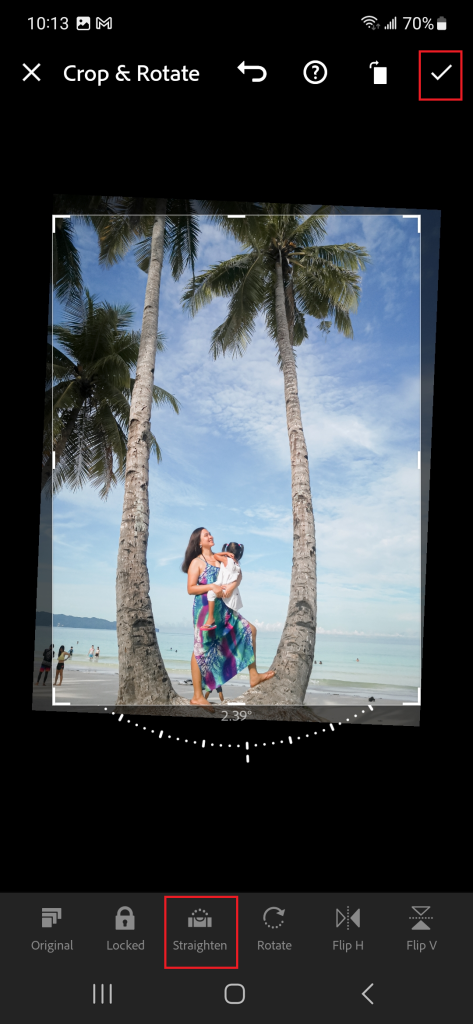
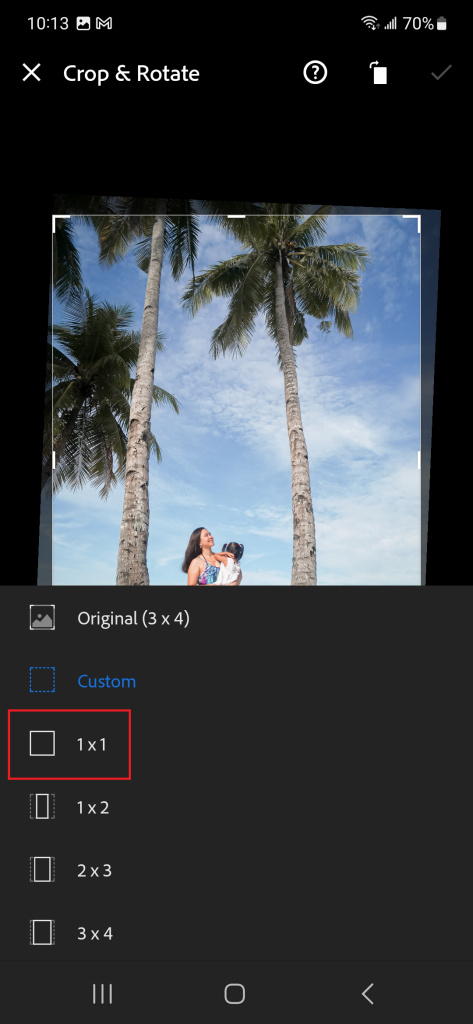
Adobe Lightroom Mobile also offers tools for cropping and straightening your photos. You can use these tools to remove unwanted elements from your photos or adjust the size of your photos to fit the square format of Instagram.
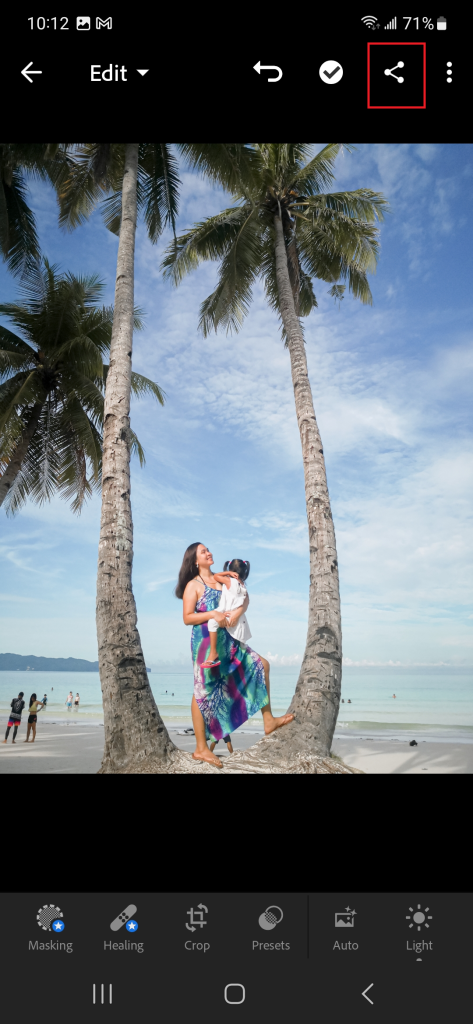
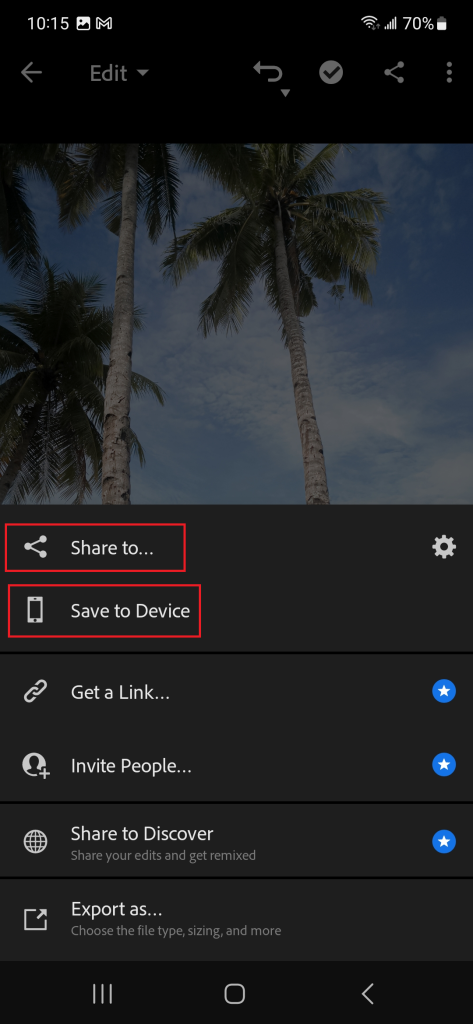
Export your photos.
Once you’ve finished editing your photos, you can export them to your camera roll or share them directly to social media platforms like Instagram or Facebook.
Wrapping Up
With Adobe Lightroom Mobile, you can edit your photos on the go. This mobile application can elevate your photos to a more professional level without having to learn advanced techniques. With a little practice and experimentation, you’ll be able to showcase your unique style and personality by sharing your travel photos on your social media like Instagram. What are some other photo editing apps or tools you have found helpful in improving your travel photos? Feel free to share them in the comments below.